हाशिया حاشیہ haashiya, n. The margin of a page, in Hindi and Urdu. Where you write what you haven’t decided yet. the margin

Haashiya, the Margin app for Mac

A writing app
for the undecided.

Keep several versions of a word, a line or a paragraph right where it sits. Dim what you might cut. Let AI suggest, and stay the author.

Free · macOS 11 or later · Apple Silicon and Intel · Also on Windows

Hover a wavy line, press ↑ or ↓. Every version stays in the file until you choose.

§ 1 The idea

after a demo by Jason Fried

Most writing apps make you decide.
This one lets you wait.

You write a sentence. Then a better one. Then you aren’t sure it’s better. In most apps one of them has to go.

In Haashiya both stay. The one you’re not using sits under a wavy line, one keystroke away. The paragraph you’re not sure about goes dim instead of disappearing. The sentence you cut on Tuesday is still there on Thursday, if you want it.

The idea came from a short demo by Jason Fried of the writing tool he built for himself, with versions kept inline. Haashiya is an independent take on it, for the Mac, with plain Markdown files and an AI that is allowed to point but not to write over you.

§ 2 Features

Five habits of a careful writer,
built in.

01

keep both

Keep every version in place.

Select a word, a line or a whole paragraph and press ⌘D. Type another version. Now both live in the same spot, under a wavy gold line, with small dots showing how many there are.

Hover and press ↑ or ↓ to try each one in the sentence, where it actually has to work. Ask for ✦ AI alternates and you get four more, marked with a ✦ so you always know which words are yours.

⌘D add a version · hover + ↑↓ try each · right-click ▸ ✦ AI alternates

Much of the tension in a draft comes from trying to say everything at once.
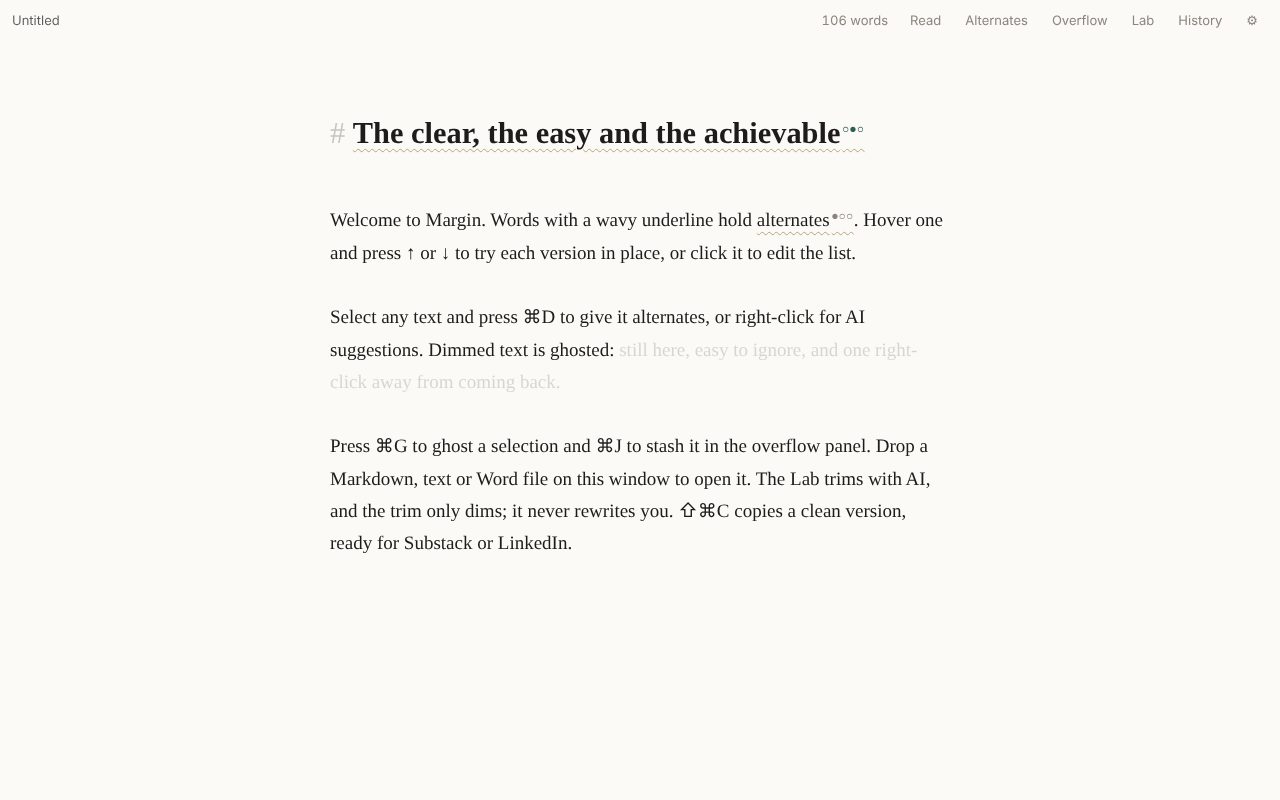
Try it. Hover or tab to an underlined phrase, then press ↑ or ↓.

02

dim, don’t delete

Dim it. Don’t delete it.

⌘G ghosts a passage: it fades to a whisper but stays on the page, so you can read the paragraph without it and still see what used to be there. Right-click to revive it.

For the bit that belongs somewhere else, stash it with ⌘J. A marker keeps its place, and Put back returns it. Stashed text saves with the file and stays out of anything you copy or publish.

⌘G ghost · right-click ▸ Revive · ⌘J stash · Overflow ▸ Put back

Ghosted text drops out of copies and word counts. It never drops out of the file.

03

AI that selects

An editor that points, and keeps its hands off.

Open the Lab and ask for a slight trim, a tighter one, or the piece cut in half. The AI doesn’t rewrite a word. It dims the passages it would remove, in lilac, and you decide: accept the cuts, or revive any of them.

Checks work the same way. One finds convoluted sentences, another finds words that are off-tone. Each highlight carries a one-line reason. Nothing changes until you change it.

Lab ▸ Slight trim · Tighter · Cut in half · Checks

Trims are cumulative. Run it twice and it dims a little more.

04

for the allergic

Find the slop before your readers do.

In today’s fast-moving world, here’s the thing — robust, seamless platforms don’t just process payments, they unlock trust.

  1. Cliché opener
  2. Staged rhetoric
  3. Filler words
  4. Not X but Y
Scroll it into view. Click a highlight to apply them all.

ReduceSlop is a check in the Lab, built on a house list of the habits that make writing sound machine-made: staged rhetoric, performative sincerity, decorative dashes, filler like robust, seamless and leverage. The Lab list names the rule each one broke.

One click applies every finding. ReduceSlop swaps in plainer wording as ✦ alternates, with your original one ↑ away, and dims the filler. One ⌘Z undoes the whole pass.

Lab ▸ ReduceSlop · ↑↓ compare with yours · ⌘Z undo the pass

It names the rule and offers a plainer version. Yours stays in the file, one keystroke away.

05

the drawer of old drafts

Every version you saved, one click away.

Haashiya keeps a snapshot when you open a file, every time you save, and every few minutes while you write. Open History, pick one, and see it against what you have now.

Bring back a single line: if you’ve rewritten it since, the old wording returns as an alternate, so you can compare the two in place. Or restore the whole version, and undo that too if you change your mind. Snapshots live in the app’s own folder, never inside your file.

History ▸ pick a version ▸ Bring back · Restore this version · ⌘Z

Your Markdown file stays clean. History lives next to it, not in it.

§ 3 Try it

the real editor, running in this page

Don’t take our word for it.
Take your own.

This is the actual editor, the same code as the Mac app, running in your browser. Write, add alternates, ghost things, open the reading view. Nothing you type leaves this page.

  • ⌘D add a version
  • ↑↓ try versions
  • ⌘G ghost
  • ⌘J stash
  • ⇧⌘P read
Start the editor

Loads about 150 KB. Works best with a keyboard.

AI features are switched off here. They need your own Anthropic key, which only the app can keep safely. Files download instead of saving in place.

§ 4 Principles

house rules

Four rules the app never breaks.

  1. 01

    You stay the author.

    AI can suggest a version or point at a passage. It cannot replace your words. Every AI suggestion carries a ✦, and yours never do.

  2. 02

    Nothing is thrown away.

    Ghost instead of delete, stash instead of cut, history instead of regret. Undo reaches back 500 steps.

  3. 03

    Your files are plain Markdown.

    Open them in any text editor, now or in twenty years. The few marks Haashiya adds read sensibly as plain text.

    Much of the {{tension|pressure|>struggle|~trade-offs}} comes from…
    ~~a ghosted sentence~~
    <!-- overflow -->
    Spare paragraphs live here.
    Alternates in braces, the shown one marked >, AI ones ~. Ghosts in tildes.
  4. 04

    The page stays quiet.

    No toolbar of forty buttons. The only things that stand out are decisions you haven’t made yet.

§ 5 Look & sound

for the tactile

Write in the font you think in.
Hear it, if you like.

Pick a book serif, a clean sans, a monospace or a typewriter face, and an ink: sepia, fountain-pen blue or green. Then a sound. A typewriter, with the bell and the carriage return. A clicky mechanical keyboard, like the old TVS Gold. Or musical notes: every key plays a note in the scale and key you choose, so whatever you type stays in tune.

⇧⌘T switches to typewriter mode, font and sound together, and back.

Sounds are made on the fly with Web Audio. There are no recordings in the app.

§ 6 In & out

from Word, to Substack

Bring in the draft. Send out the post.

Bring it in.

Open Markdown directly. Word, rich text, web pages and plain text come in as new drafts with their headings, lists, bold and italic intact. PDFs too, experimentally: the text arrives, the layout doesn’t.

  • .md
  • .docx
  • .rtf
  • .html
  • .txt
  • .pdf (experimental)

Send it out.

⇧⌘C copies a clean version with alternates resolved and ghosts left behind. It keeps its formatting in Substack, Medium and Google Docs, and turns into Markdown in plain-text boxes. For Substack, FormatSubstack splits your piece into title, subtitle and body, one copy button each, and tells you what won’t paste.

Three fields, three buttons. Your words unchanged.

§ 7 Privacy

nothing to report

Your words stay on your Mac.

No accounts, no tracking. There’s no sign-up, no analytics and no server of ours for your words to reach. This website doesn’t track you either.

Your key, your Keychain. AI features use your own Anthropic API key, kept in the macOS Keychain and used only by the app’s native side, never the page.

Asked, every time it matters. Before any text goes to the AI for the first time, the app asks, and says exactly what each feature sends. Ghosted text and the Overflow panel are never sent.

Read the privacy policy →

§ 8 Download

free, no catch

Keep every version.
Choose later.

Haashiya is free. The download is the Margin app. Version 0.6.1.

Mac

macOS 11 Big Sur or later · Apple Silicon and Intel · Signed and notarized by Apple

Download for Mac

Open the .dmg and drag Margin to Applications.

Windows

Windows 10 or 11 · New

Download for Windows

The installer isn’t code-signed yet, so Windows SmartScreen may warn you. Choose More info, then Run anyway.

Then: press ⌘, in the app and paste an Anthropic API key if you want the AI features. Everything else works without one.

§ 9 Questions

Questions, answered plainly.

Why two names?

Haashiya (हाशिया, HAA-shee-yaa) is Hindi and Urdu for the margin of a page. It’s the name of the product. The app you install is called Margin, which is the same word in English, and it says Margin in your Dock and menus.

Is it really free?

Yes. If you use the AI features, Anthropic bills you directly for what your key uses. Haashiya never sees the bill or the text.

Do I need the AI at all?

No. Alternates, ghosting, overflow, version history, the reading view, fonts and sounds all work without a key. The AI is there when you want a second opinion.

Which AI model does it use?

Claude, from Anthropic, through your own API key. You can change the model in Settings.

What happens to my files if I stop using it?

Nothing. They’re Markdown. Any text editor opens them, and the few marks Haashiya adds read sensibly as plain text.

Does it work offline?

Everything except the AI features.

Why does Windows warn me?

The Windows installer isn’t code-signed yet, so SmartScreen doesn’t recognise it. Choose More info, then Run anyway. The Mac version is signed and notarized.

Where is version history kept?

In the app’s own data folder on your computer, next to your files, never inside them.

Who makes it?

I’m Amit Das. I write long-form about banking, fintech and AI, and I kept losing good sentences to the delete key. Haashiya is the tool I wanted. It’s made alongside RepoShifu.

How do I get help?

Write to amitdas+haashiya@gmail.com. A person answers.